Visual Studio Code has become the default development platform for many/some, especially now that AI coding assistants are deeply integrated. It’s also nowadays possible to develop Java and even C# completely in VSCode, thanks to a rush of updates the implementation of Language Server Protocol and extensions that turned the former editor into a full IDE.
I personally use VS Code and Visual Studio side by side — Visual Studio for the C# development convenience and familiarity, and VS Code for the Copilot features, since it works significantly better there. Microsoft is constantly updating VS Code right now to compete with Cursor IDE, deeply integrating Copilot while simultaneously making the platform more modular.
But there are still some frustrating gaps between „using it as an editor“ and „using it as a full IDE.“ But the good news is: you can adjust a lot in VS Code. One of the most annoying daily friction points is how it handles file tabs.
Table of Contents
The Frustration
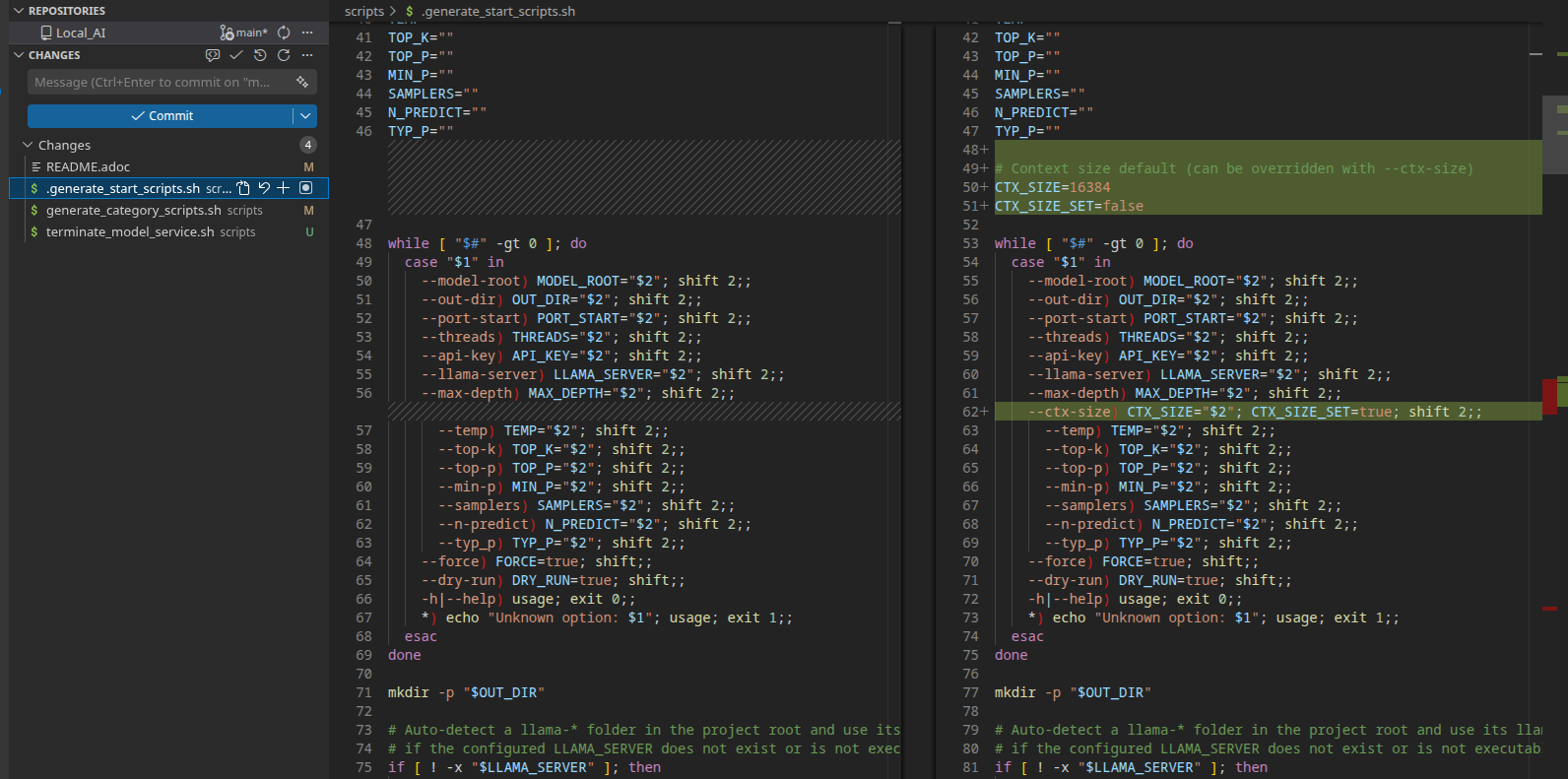
When you click a changed file in the Source Control panel, VS Code opens a diff view in a temporary „preview“ tab (notice the italic title). The problem?
You can not edit what you have in front of you, instead you have to click on the file in the file tree and click: Open File to get than the file where you are able to edit somthing…But now you are not able to see what changed between the last commit and your changes.
Also I want that when I click on a file, that this opens a new tab and not replaces the tab I have currently opend.
The Fix / The Tweek
Two separate settings, combined, solve this completely.
1. Disable Preview Mode Entirely
Add this to your settings.json (Ctrl+Shift+P → „Preferences: Open User Settings JSON“):
"workbench.editor.enablePreview": false,
"workbench.editor.enablePreviewFromQuickOpen": false,
"workbench.editor.enablePreviewFromCodeNavigation": false
This ensures every file opens as a permanent tab — no more temporary tabs that vanish when you click elsewhere.
2. Skip the Diff View in Source Control
By default, clicking a file in the Git panel opens a side-by-side diff. If you want to edit the actual file directly instead:
"git.openDiffOnClick": false
Now clicking a changed file opens the real file in a normal editor — ready for editing, AI-assisted refactoring, or whatever your workflow demands.
The End-Result
With both configs active:
- You open a file git in the commit tab, you are able to see the changes highlightes like allways, but you are able to edit them!
- When you click on a file in the file tree than this opens a new tab and not replaces one.
Addition
Copilot creates hidden terminals for background tasks. This prevents visibility of command output and blocks interactive input like passwords.
"chat.tools.terminal.outputLocation„: „terminal“
Sources
C# Debugging with VisualStuidoCode