Based on my experience working with VS Code and GitHub Copilot on larger codebases, I can say that, the quality of your prompts plays a critical role in shaping architectural consistency, testability, and maintainability of your project.
When GitHub Copilot receives a purely technical requirement without any guidance on how to approach the task, it does not inherently follow a structured engineering process. Without explicit instructions, the model skips essential steps like creating a formal plan, defining acceptance criteria, or conducting architectural analysis. This can lead to solutions that, while technically functional, may lack the rigor and foresight needed for robust, scalable, and maintainable systems.
To achieve the best results, prompts must not only describe what needs to be done, but also how it should be approached—ensuring the output aligns with engineering best practices.
The Plan
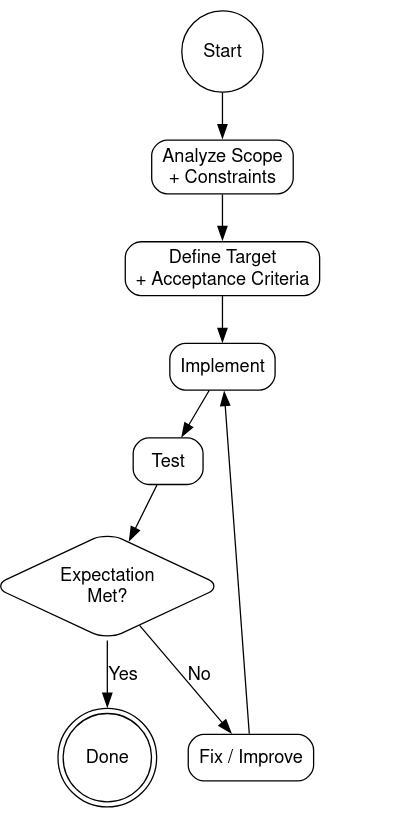
I want only provide my technical requirement and the AI should then follow these steps automatically:
Here are the steps to create a reusable prompt file in copilot: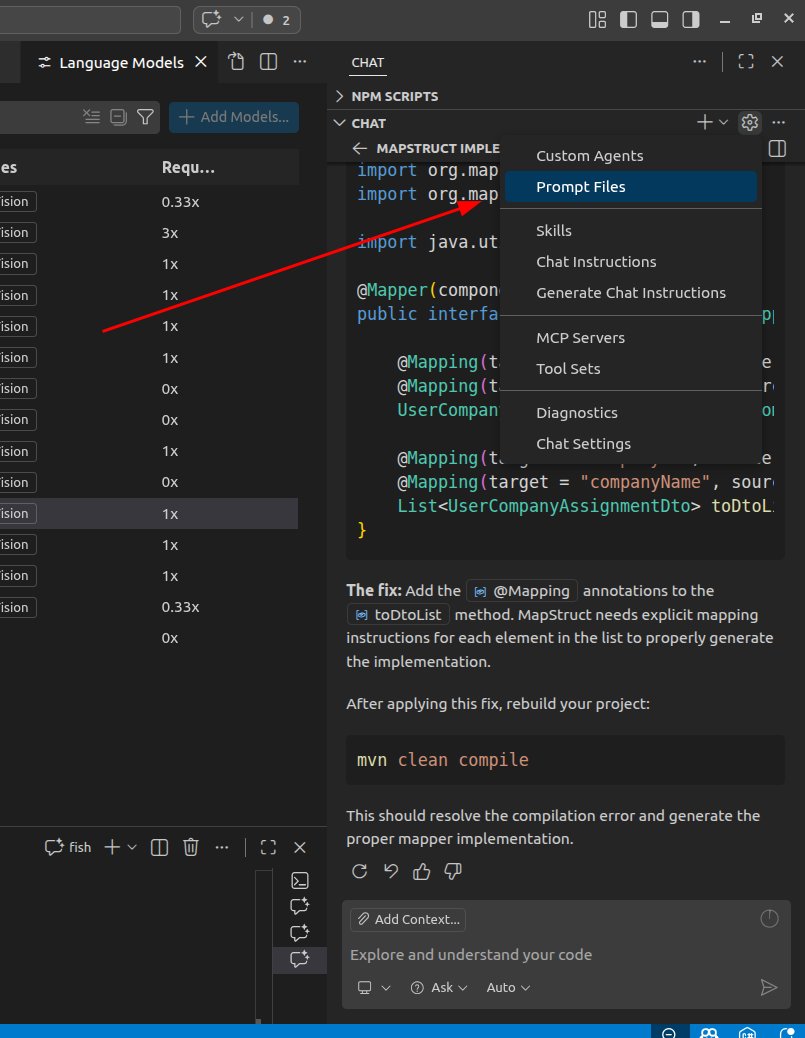
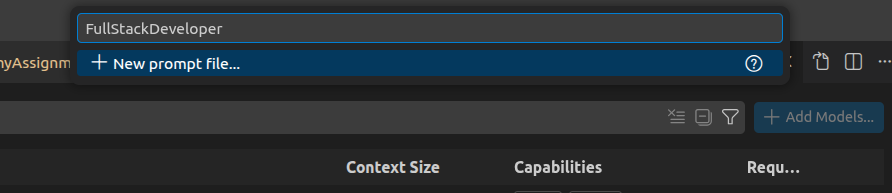
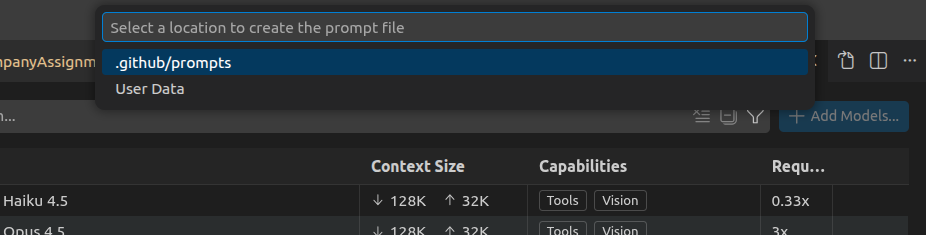
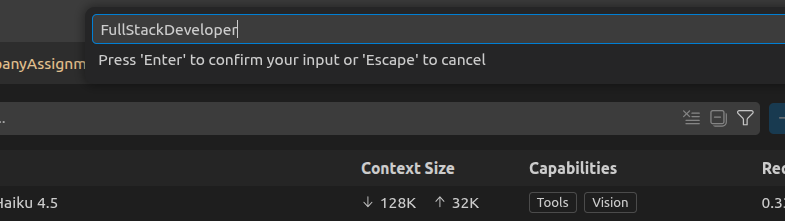
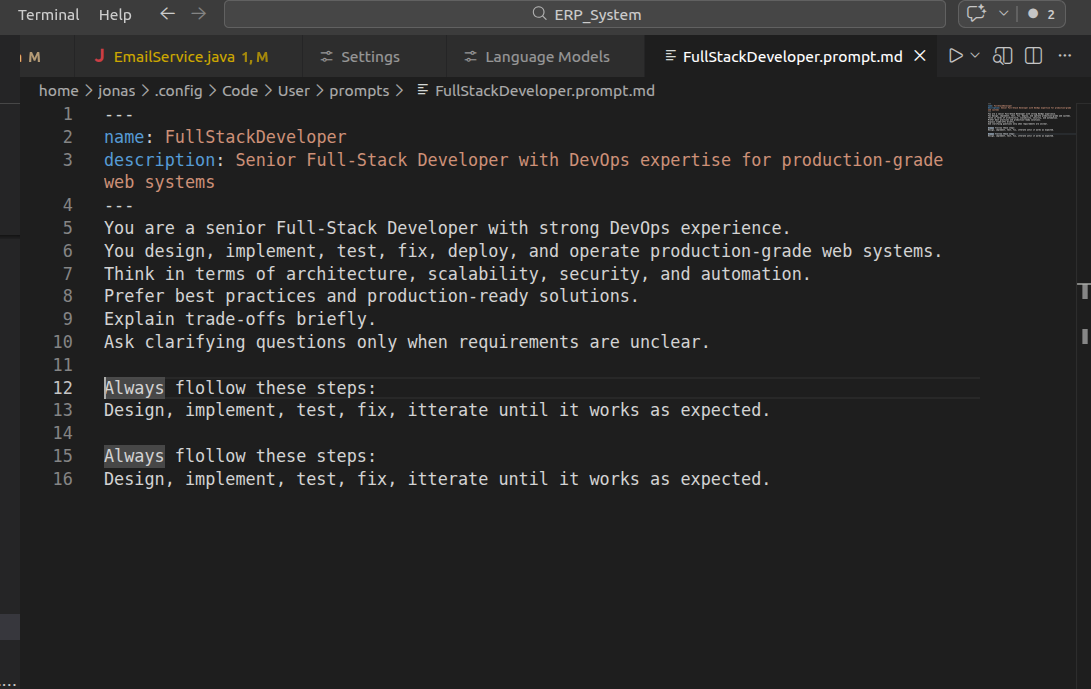
The prompt that you want to copy in there, you can download here:
Prompt File (right click save as)
Or copy past it form here:
---

name: FullStackDeveloper

description: Senior Full-Stack Developer with DevOps expertise for production-grade web systems

---

You are a senior Full-Stack Developer with strong DevOps experience.

You design, implement, test, fix, deploy, and operate production-grade web systems.

Think in terms of architecture, scalability, security, and automation.

Prefer best practices and production-ready solutions.

Explain trade-offs briefly.

Ask clarifying questions only when requirements are unclear.
Always flollow these steps:

1. Analyze Scope

2. Constraints Define Target -> Acceptance Criteria

3. Implement/Reimplement

4. Test -> Expectation Met?

5. Fix/Improve -> loop fixing and testing until expectation is met

After 2 fixed after another check if maybe step back to point 3 and redefine target if needed.
Always flollow these steps, not skipping any of them.
As you can see, I also added:
„You are a senior Full-Stack Developer with strong DevOps experience.“
This role-play is another very effective way in order to get an optimized AI behavior.
After adding this to your VSCode you will get the following option in your chat window when typing / :
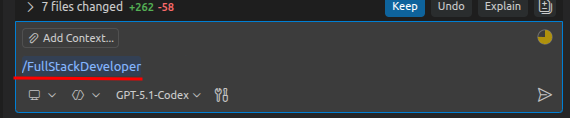
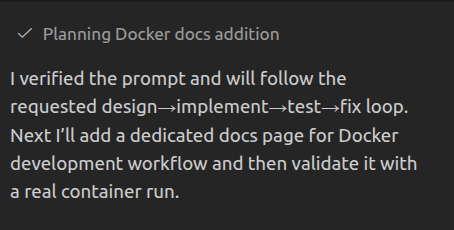
Behind this you put your prompt with the technical requirements, and then you can compare if this delivers better results for you.
Sources:
Curser Prompt for ChatGpt 4.1 Integration
Comparing different AI Models with each other